How to Check and Manage Your Google Account Activity History
If you want to check and manage your Google Account activity history, you’re already on the right track for protecting your privacy and staying in control. Google logs every action you take—from searches and YouTube views to the apps you open on Chrome and the locations you visit. Understanding and adjusting this history is simple once you know where to look and what to tweak.
Check & Manage Your Google Account Activity History: Step‑by‑Step
1. Open Your Activity Dashboard
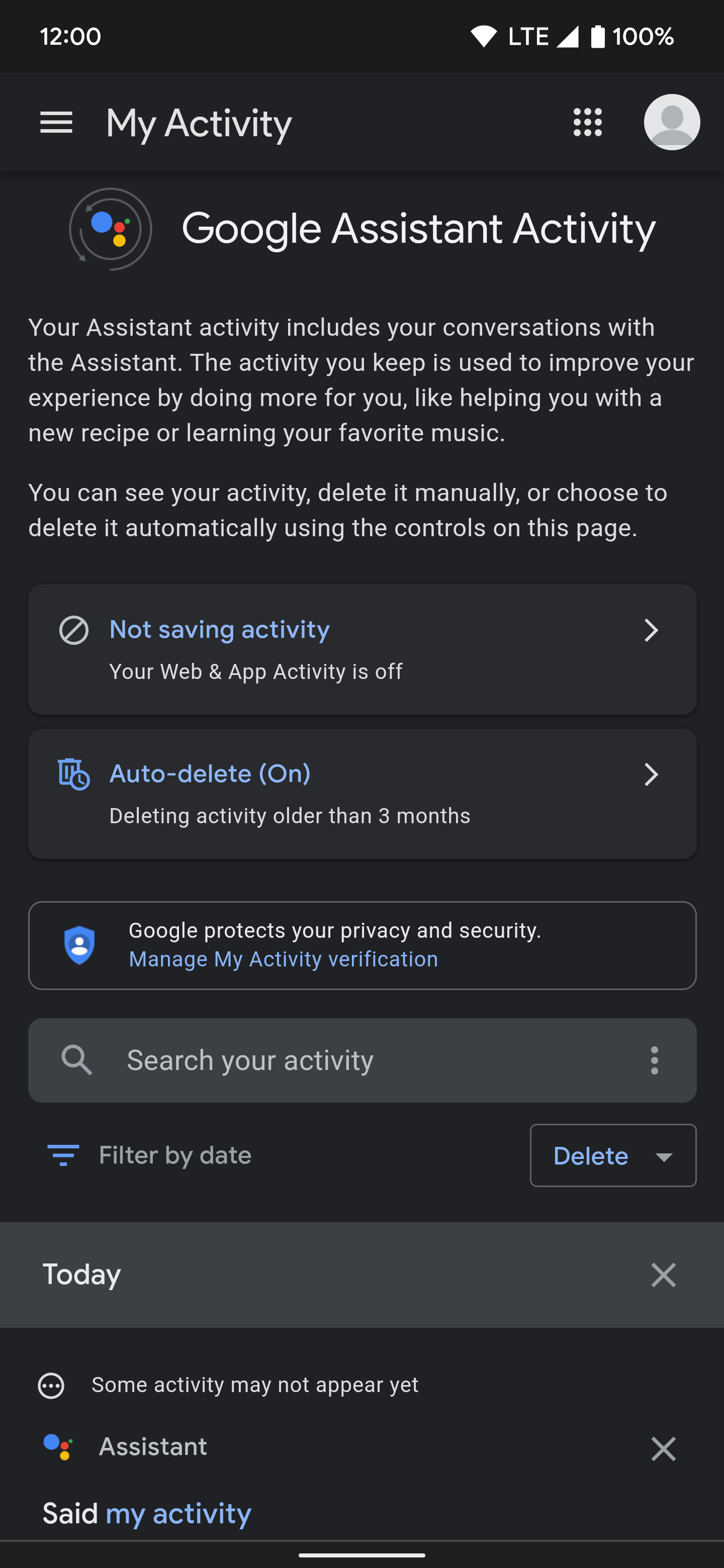
Navigate to myactivity.google.com. You’ll see a chronological list of everything Google records: web & app activity, YouTube history, location, and more.
2. Filter by Category
Click the gear icon in the top right, then select “Filter by date & product.” Choose the specific service you want to review, such as “Chrome” or “YouTube.” This narrows the view and reduces clutter.
3. Search Within Your Activity
Use the search bar to find particular sites, videos, or locations. The results surface instantly, making it easy to spot patterns you might want to erase.
4. Delete Specific Items
Hover over an entry and click the three dots that appear. From the menu, choose “Delete from history.” You can also select multiple items by checking the boxes next to them and then clicking the delete icon at the top.
5. Clear Entire Categories
For a broader sweep, click “Delete activity by” in the sidebar. Choose the time frame—last hour, last 24 hours, last 7 days, last 30 days, or all time—and confirm the deletion. This action is irreversible, so double‑check before proceeding.
Understanding What Appears in Your Activity
Google’s Activity Dashboard groups data into three main buckets:
- Web & App Activity – Searches, browsing history, and app interactions.
- YouTube History – Watched videos and search terms.
- Location History – GPS coordinates and mapped movements (if you’ve enabled Location History).
Each entry includes a timestamp, device name, and a brief description, which helps you quickly identify the context of each action.
Managing Activity Settings
Beyond deleting past records, you can control what Google records moving forward:
- Turn Off Web & App Activity – In the settings sidebar, toggle the switch to stop logging searches and site visits.
- Adjust YouTube Autoplay & Watch History – In the YouTube app or website, disable “Watch history” or “Home & Watch next” to prevent automatic tracking.
- Limit Location History – Go to Settings → Personal info & privacy → Location history and choose “Pause.”
Remember, disabling activity logging may limit personalized experiences, such as search suggestions or ad relevance.
Protecting Your Account
Monitoring activity is a key component of account security. Look out for:
- Unfamiliar device names or IP addresses.
- Odd time stamps, especially if they fall outside your usual hours.
- Sudden spikes in activity that could signal credential misuse.
When you spot suspicious entries, take action immediately: change your password, enable two‑factor authentication, and review connected apps.
Best Practices for an Ongoing Clean Slate
- Schedule Regular Audits – Set a monthly reminder to review your activity.
- Use “Smart Cleanup” – Some devices offer an automated cleanup feature that suggests deletions based on your habits.
- Educate Household Members – If you share a Google Account or a device, discuss privacy expectations and how to manage activity collectively.
- Backup Important History – If you need a record of past activity for professional reasons, export it via the “Download your data” tool before deleting.
Frequently Asked Questions
Q: