How to Edit PowerPoint Slide Backgrounds Quickly: A Simple Guide
If you’ve ever stared at a bland slide and wished you could change the backdrop in just a few clicks, you’re not alone. The ability to edit PowerPoint slide background lets you turn a generic deck into something that feels tailored to your audience. Below you’ll find a straightforward walk‑through, plus a handful of design shortcuts you can start using today.
Why a Custom Background Matters
A well‑chosen background does more than look pretty; it reinforces your message, guides the viewer’s eye, and can even improve readability. A solid color that matches your brand palette creates a cohesive feel, while a subtle texture can add depth without distracting from the content. When the background aligns with the overall theme, the entire presentation feels intentional rather than cobbled together.
Step‑by‑Step: Editing a Slide Background
PowerPoint offers several pathways to tweak the backdrop. Pick the method that matches the level of control you need.
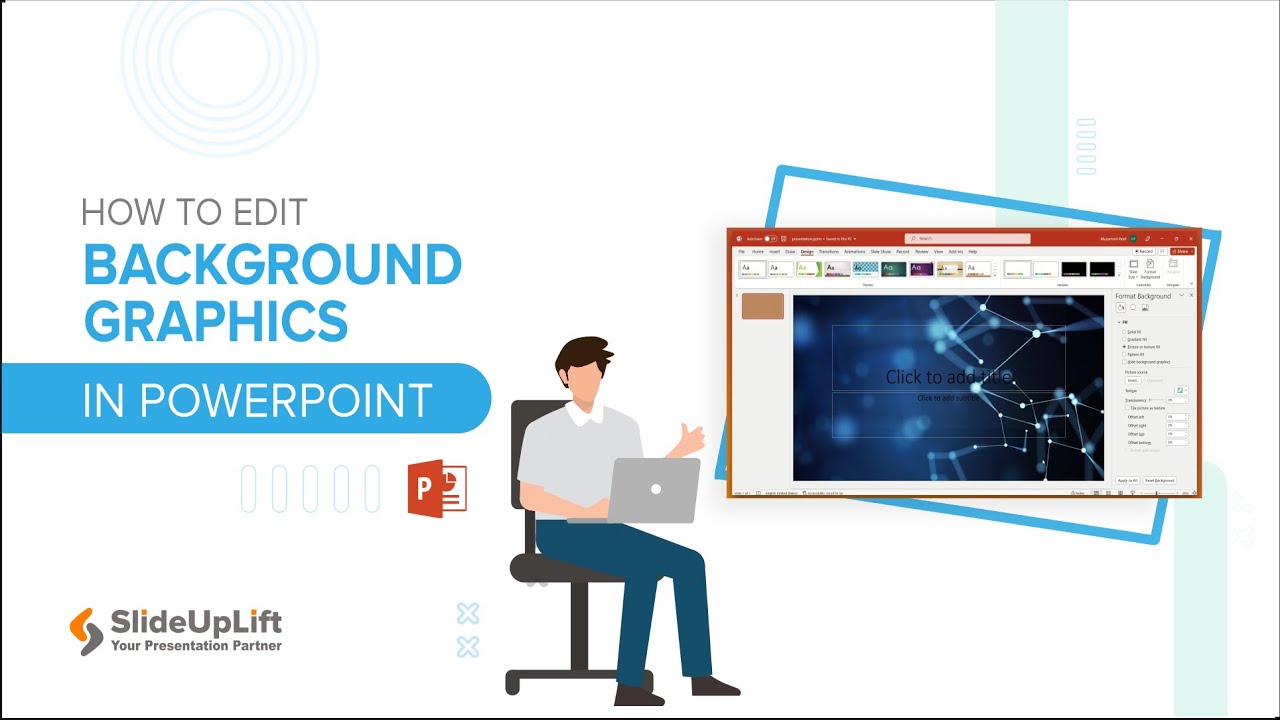
Using the Format Background Pane
- Open the pane. Right‑click anywhere on the slide and select Format Background, or head to the Design tab and click the small arrow in the Customize group.
- Choose a fill type. You’ll see options for Solid, Gradient, Picture or texture, and Pattern. Each offers a preview so you can see changes instantly.
- Adjust settings. For a solid fill, pick a color from the palette or enter a hex code. For gradients, select the direction, angle, and the individual stop colors. Play with the transparency slider if you want the background to recede slightly.
- Apply. Click Apply to All if you want the same background across every slide, or just close the pane to affect the current slide only.
Applying a Picture or Texture
- In the same Format Background pane, choose Picture or texture fill.
- Click Insert… and locate an image on your computer, from an online source, or from PowerPoint’s built‑in stock collection.
- Once the picture loads, you can adjust Transparency, Offset, and Tile picture as texture to make the image blend smoothly with your slide content.
- Remember to use high‑resolution images; low‑quality photos can look pixelated when projected.
Saving a Custom Theme
If you’ve spent time fine‑tuning colors, fonts, and the background, save your effort for future decks.
- Go to Design → More (the dropdown arrow) → Save Current Theme.
- Name the file descriptively—e.g., “Quarterly Report – Blue Gradient.thmx”.
- Next time you start a new presentation, choose Browse for Themes and select your saved file. All background settings, plus color schemes and fonts, will be applied automatically.
Tips for Consistent Design
Even after you master the mechanics, a few habits keep your slides looking professional.
- Limit contrast. Dark text on a dark background or light text on a light background hurts readability. Aim for a contrast ratio of at least 4.5:1 for body text.
- Use brand colors sparingly. A primary brand hue works well for the background, while secondary colors can accent shapes or icons.
- Stay subtle with textures. A faint linen or paper texture adds tactile interest without overwhelming charts or bullet points.
- Test on the big screen. What looks crisp on a laptop may wash out on a projector. Run a quick test slide before the final run‑through.
FAQ
Can I edit the background of only one slide without affecting the others?
Yes. Open the Format Background pane, make your changes, and simply close the pane—do not click “Apply to All.” The modifications will stay confined to the selected slide.
Is there a way to lock a background so it can’t be accidentally moved?
PowerPoint doesn’t have a direct “lock background” feature, but you can insert the background as a picture, right‑click it, choose Send to Back, and then use the Selection Pane (under Home → Select) to hide the object from the editing view.
Do picture backgrounds increase the file size significantly?
They can, especially if you use high‑resolution images. To keep the presentation lightweight, compress pictures via File → Compress Pictures and choose a suitable resolution for your intended display method.