How to Locate Your HP Laptop’s MAC Address in BIOS
Finding the MAC address on your HP laptop through the BIOS might sound like a tech‑only trick, but the process is actually straightforward. Whether you’re setting up a new network, troubleshooting connectivity, or just curious about the hardware identifier that sits behind your Wi‑Fi card, the BIOS holds the answer. Below we’ll walk through why the BIOS version of the MAC matters, then break the steps into bite‑size actions you can follow without a PhD in computer science.
Why Check the MAC Address in BIOS?
The MAC (Media Access Control) address is a unique 12‑digit code stamped onto every network adapter. Most operating systems display it in the settings, but those listings can be altered by software or hidden behind virtual adapters. The value stored in the BIOS, however, is the factory‑assigned address that the hardware itself reports, making it the most reliable reference point. This is especially handy when you need to:
- Register the device with a corporate network that filters by MAC.
- Resolve IP conflicts that stem from duplicated software‑assigned addresses.
- Verify that a replacement Wi‑Fi card is genuine, since counterfeit parts often come with duplicated MACs.
Step‑by‑Step Guide to Accessing the MAC in HP BIOS
HP laptops share a common BIOS layout, but minor variations exist between models. The core sequence stays the same, so you can adapt the instructions if a menu label looks a little different.
1. Power down and prepare
- Save any open work and shut the laptop completely – a full shutdown, not just a sleep or hibernate.
- Disconnect external peripherals (USB drives, docking stations) to avoid extra prompts.
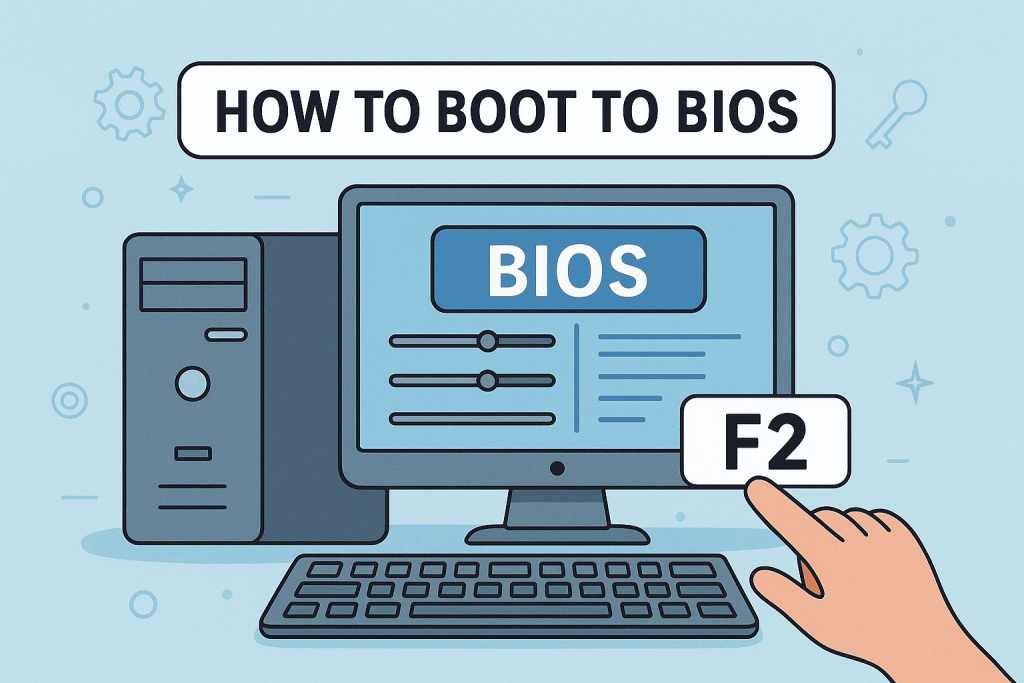
2. Enter the BIOS
- Turn the laptop back on and immediately press the Esc key repeatedly. On most HP models this brings up a startup menu.
- From the startup menu, hit F10 to launch the BIOS Setup Utility. (Some newer models use F2 or F12; the on‑screen hint will tell you which key to press.)
3. Navigate to the network section
- Use the arrow keys to move to the Advanced or System Configuration tab – the exact name varies by BIOS version.
- Look for an entry named Network, Built‑in Device Options, or Wireless LAN. Press Enter when you find it.
4. Locate the MAC address
- Inside the network submenu, you should see a field called MAC Address, Ethernet Address, or Wireless MAC. The string will appear as six pairs of hexadecimal characters separated by colons or hyphens (e.g., 3C:5A:37:9B:1D:E4).
- If the BIOS lists both wired and wireless adapters, note the one you need. The wireless MAC is typically the one you’ll use for Wi‑Fi connections.
5. Record and exit
- Write the address down or take a quick photo with your phone – the BIOS won’t let you copy it directly.
- Press Esc to back out of the submenu, then choose Save & Exit (or simply Exit if you haven’t changed any settings). Your laptop will reboot normally.
That’s the whole journey from power button to printed MAC address. Most users find the process takes under two minutes once they’re accustomed to the key sequence.
What to Do If the MAC Doesn’t Appear
Occasionally, a BIOS may hide the MAC address behind a “Secure Boot” or “Device Guard” setting. In that case, you can:
- Temporarily disable Secure Boot in the Security tab, then repeat the navigation steps.
- Update the BIOS firmware from HP’s support site – newer versions often expose additional hardware details.
- Fall back to the operating system method: open a command prompt and type
ipconfig /all(Windows) orifconfig -a(Linux) to see the MAC listed under the appropriate adapter.
These alternatives are safety nets; they rarely replace the simplicity of a BIOS lookup, but they’re useful if you encounter a locked menu.
Frequently Asked Questions
Can I change the MAC address from the BIOS?
No. The BIOS only displays the factory‑assigned MAC. Changing it requires software tools or a hardware replacement, and many networks consider a spoofed MAC a security risk.
Is the MAC address the same for Wi‑Fi and Ethernet?
Usually not. Each network interface has its own unique MAC. If your HP laptop has both a wired Ethernet port and a wireless card, you’ll see two distinct addresses in the BIOS.
Do I need admin rights to view the MAC in BIOS?
Accessing the BIOS itself doesn’t require operating‑system privileges, but you do need the ability to press the startup key sequence. If the laptop is managed by an organization that locks BIOS entry, you’ll need the administrator’s password.
Why does my MAC sometimes start with “00:50:56” on HP machines?
HP’s hardware vendor prefix often begins with 00:50:56. Seeing that pattern is a quick visual cue that the address is genuine and hasn’t been altered by third‑party software.