How to Quickly Resolve Common IBM Account Login Problems
When you’re trying to access IBM’s cloud services or internal portals, an unexpected login snag can feel like a roadblock. Whether it’s a forgotten password, a misbehaving browser, or a more obscure authentication error, IBM account login issues affect users of all skill levels. The good news is that most of these hurdles have straightforward fixes you can try before calling support. Below is a practical guide that walks you through the most frequent culprits and the steps to get you back online.
Identify the Root Cause of IBM Account Login Issues
Before you dive into troubleshooting, it helps to narrow down the symptom. Ask yourself these quick questions:
- Are you seeing an error message, and if so, what does it say?
- Did the problem start after a recent password change or security update?
- Are you using a corporate device, a personal laptop, or a mobile app?
Answers to these prompts often point you toward a specific category—password problems, multi‑factor authentication (MFA) hiccups, or browser incompatibilities—so you can apply a targeted fix rather than a trial‑and‑error approach.
1. Password and Credential Mistakes
Even seasoned users mistype their passwords or forget a recent change. IBM’s login page will typically flag a mismatched entry, but sometimes the error is more subtle, like an expired password that silently redirects you back to the sign‑in screen.
- Reset your password. Use the “Forgot password?” link on the IBM sign‑in page. You’ll receive a verification code via your registered email or phone.
- Check for case sensitivity. IBM passwords are case‑sensitive; a stray capital letter can throw everything off.
- Watch for hidden characters. Copy‑pasting from a password manager may introduce invisible spaces. Type the password manually to be safe.
2. Multi‑Factor Authentication (MFA) Glitches
MFA adds a valuable security layer, yet it can be the source of frustration when the second factor fails to verify.
- Resynchronize your authenticator app. Open the IBM Verify app, locate the “Sync” option, and follow the prompts.
- Switch to an alternative factor. If you normally receive a push notification, try the one‑time passcode (OTP) sent by SMS or email.
- Clear old device registrations. Log in to the IBM Identity and Access Management (IAM) console from a trusted device and remove outdated MFA devices.
3. Browser and Cookie Complications
IBM’s authentication flow relies heavily on cookies and JavaScript. An outdated browser or a strict privacy setting can interrupt the process.
- Update your browser. IBM supports the latest versions of Chrome, Edge, Firefox, and Safari. An old release may lack required security protocols.
- Clear cache and cookies. A corrupted session cookie often triggers repeated login loops. Navigate to your browser’s settings and purge site data for “ibm.com.”
- Disable aggressive extensions. Ad blockers or script blockers can inadvertently block IBM’s login scripts. Temporarily disable them and retry.
4. Network and VPN Restrictions
Corporate networks sometimes route traffic through proxies that strip essential headers, while VPNs can present IP addresses that IBM’s security checks flag as suspicious.
- Test a direct connection. Disconnect from the VPN and try logging in from your home network.
- Whitelist IBM domains. If you’re on a corporate network, ask your IT team to ensure domains like *.ibm.com are not blocked.
- Check for proxy authentication. Some proxies require separate login credentials, which can interfere with IBM’s single sign‑on (SSO) flow.
5. Account Lockouts and Security Policies
Repeated failed attempts trigger IBM’s security mechanisms, temporarily locking the account to protect against brute‑force attacks.
- Wait it out. Most lockouts last 15‑30 minutes. After that period, you can try again.
- Contact your administrator. In enterprise environments, the IT admin can manually unlock the account from the IAM console.
- Review password policies. IBM may enforce complexity rules (e.g., minimum length, special characters). Ensure your new password complies.
When to Escalate to IBM Support
If you’ve walked through the steps above and the login screen still refuses to cooperate, it’s time to involve IBM’s support channels. Before you call, gather the following information to streamline the process:
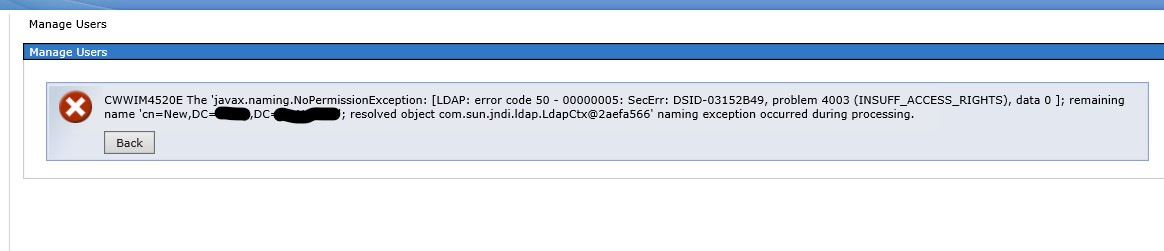
- Exact error message text and any accompanying error codes.
- Timestamp of the failed login attempts (including time zone).
- Browser version, OS details, and whether a VPN or proxy was active.
- Recent changes to your account—password updates, added MFA devices, or role modifications.
Providing this snapshot helps support engineers reproduce the issue and cut down on back‑and‑forth emails.
Prevent Future Login Disruptions
Proactive habits can reduce the likelihood of encountering IBM account login problems again.
- Enable a password manager. Secure tools like LastPass or Bitwarden store complex passwords and auto‑fill them, minimizing typographical errors.
- Regularly review MFA devices. Keep your authenticator app up to date and remove any devices you no longer use.
- Stay on top of browser updates. Enable automatic updates to ensure compatibility with IBM’s evolving security standards.
- Document recovery contacts. Know who in your organization can unlock accounts or reset credentials quickly.
FAQ
Why can’t I log into my IBM account after a password reset?
Sometimes the reset email contains a link that expires after a short window, or the new password doesn’t meet IBM’s complexity requirements. Double‑check the email timestamp, and ensure your password includes the required mix of letters, numbers, and symbols.
How do I add or change my MFA method for IBM login?
Log into the IBM IAM console, navigate to “Security Settings,” and select “Multi‑Factor Authentication.” From there you can enroll a new authenticator app, register a phone number for SMS codes, or remove outdated devices.
My corporate VPN blocks IBM login—what’s the workaround?
Try disconnecting from the VPN and accessing IBM services directly. If that’s not feasible, request your IT department to add IBM’s authentication endpoints to the VPN’s allowlist.
What should I do if my account is locked due to multiple failed attempts?
Most locks lift automatically after 15–30 minutes. For immediate access, contact your organization’s IAM administrator, who can unlock the account from the management console.