How to Use iTranslate for English‑to‑Chinese Translation
If you’ve ever needed a quick phrase in Mandarin while scrolling through a foreign website, iTranslate is one of the most handy tools on a smartphone. The app promises real‑time conversion between English and Chinese, voice input, and even offline dictionaries—features that can make a travel mishap or a work email far less stressful. Below is a step‑by‑step guide that walks you through the basics, digs into the settings that matter, and offers a few tricks to get more accurate results.
Getting Started: Installing and Setting Up iTranslate
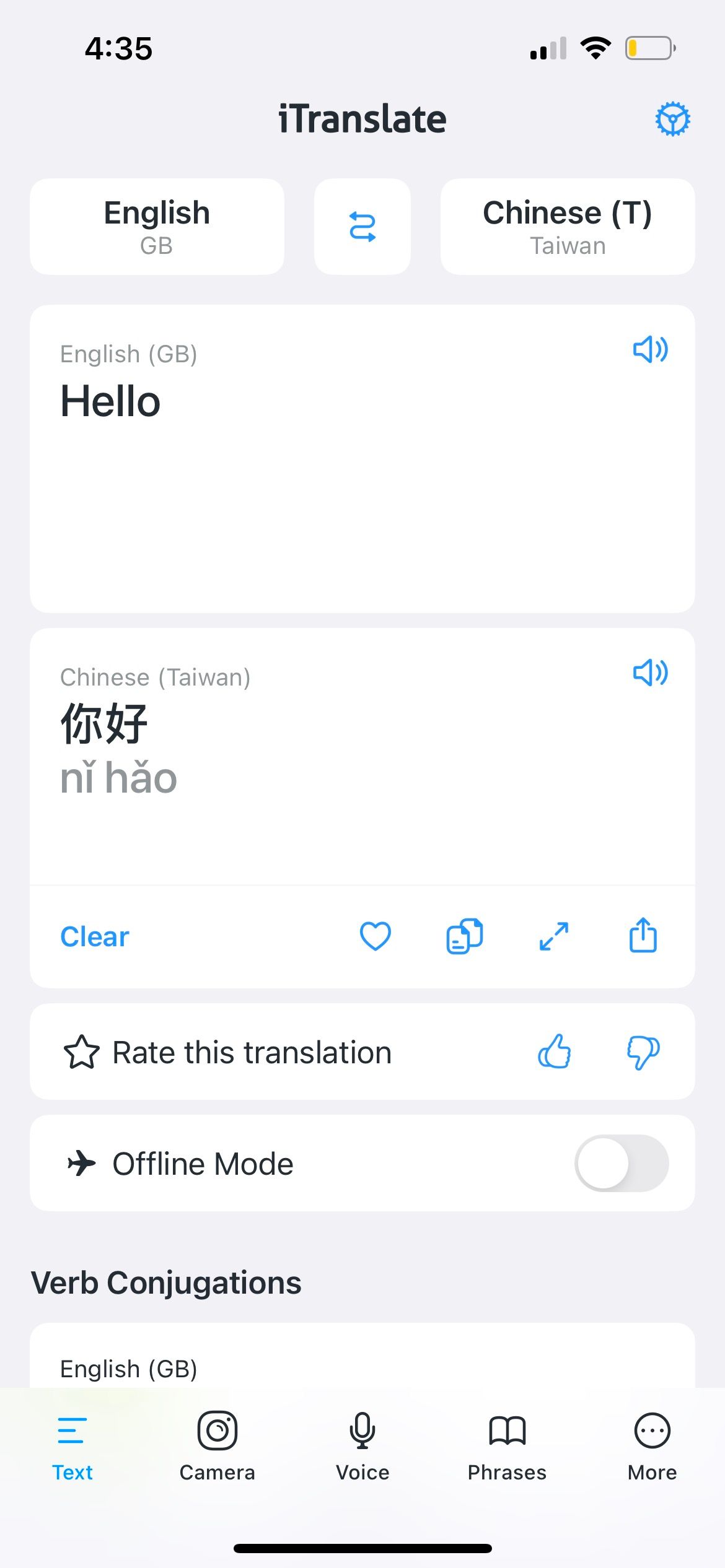
First, download iTranslate from the App Store or Google Play. The free version lets you translate text instantly, while a subscription unlocks voice‑to‑voice conversation and offline packs. After launching the app, you’ll see a clean interface with two language boxes at the top.
- Tap the left box and select English as the source language.
- Tap the right box and choose Chinese (Simplified) or Chinese (Traditional) depending on your audience.
- If you plan to travel to mainland China, stick with Simplified; Taiwan and Hong Kong favor Traditional.
Once the languages are set, the main screen is ready for input. You can type, speak, or paste text, and iTranslate will instantly render a Chinese version.
Typing English Phrases for Accurate Chinese Output
Typing may seem straightforward, but a few habits improve translation quality. English idioms often confuse machine translators, so try to rephrase them in plain language. For instance, replace “kick the bucket” with “die” before hitting translate.
When you enter a sentence, iTranslate offers suggestions underneath the input field. These suggestions are based on common usage and can help you avoid ambiguous wording. Selecting one of them often yields a cleaner Chinese sentence.
After you hit “Enter,” the Chinese translation appears below. iTranslate displays both characters and pinyin (the Romanized pronunciation). If you need to hear the pronunciation, tap the speaker icon next to the Chinese text.
Using Voice Input for Hands‑Free Translation
One of iTranslate’s standout features is its voice recognizer. Press the microphone button, speak your English phrase, and watch the app convert it on the fly. This is especially useful when you’re navigating a market and can’t type quickly.
Make sure you speak clearly and avoid background noise. The app’s accuracy drops dramatically if it can’t pick up the words. If the translation seems off, repeat the phrase slower or break it into smaller chunks.
Saving Common Phrases and Building a Personal Glossary
iTranslate lets you bookmark translations for later reference. Tap the star icon next to any Chinese output to add it to your “Favorites.” This is a lifesaver for repetitive terms like “airport,” “taxi,” or “menu.”
To edit a saved phrase, go to the Favorites tab, tap the entry, and choose “Edit.” You can add notes—perhaps a tone reminder or a cultural tip—that only you can see. Over time, this personal glossary becomes a mini‑dictionary tailored to your needs.
Offline Mode: Translating Without an Internet Connection
Traveling to remote areas often means losing signal. iTranslate’s premium subscription includes downloadable language packs. To enable offline translation, head to Settings → Languages, find “Chinese (Simplified)” or “Chinese (Traditional),” and tap “Download.”
Once the pack is on your device, the app can translate text and speech without reaching a server. Keep in mind that offline dictionaries are slightly less up‑to‑date, so some newer slang might be missing.
Fine‑Tuning Settings for Better Results
Under Settings, you’ll find a handful of options that can make a noticeable difference:
- Formal vs. Casual: Choose “Formal” when you need business‑level language; “Casual” gives a friendlier tone.
- Verb Conjugation: Turn on “Auto‑Conjugate” to let the app handle tense and aspect for Chinese, which lacks verb inflection.
- Pronunciation Dialect: Select “Mandarin (Mainland)” or “Mandarin (Taiwan)” to hear region‑specific accents.
Experiment with these toggles; the right combination often reduces awkward phrasing.
Common Pitfalls and How to Avoid Them
Even the best apps stumble on certain linguistic quirks. Here are a few recurring issues and quick fixes:
- Homophones: Chinese characters like “的” (de) and “地” (de) sound identical but serve different grammatical roles. If the translation feels odd, double‑check the context and edit manually.
- Measure Words: English nouns lack measure words, but Chinese requires them (e.g., “一只狗” for “a dog”). iTranslate sometimes omits them; add the appropriate word yourself when necessary.
- Idiomatic Expressions: Phrases like “break a leg” rarely translate well. Replace them with a literal meaning or a Chinese idiom that conveys the same sentiment.
When to Trust iTranslate—and When to Consult a Human
For everyday signs, menu items, and short messages, iTranslate is more than sufficient. However, legal documents, nuanced marketing copy, or literature demand a human translator. Machine output can miss cultural subtleties, especially in Chinese where context heavily influences meaning.
If you’re unsure about the tone or appropriateness of a translation, ask a native speaker or use a language‑exchange platform for a quick sanity check.
FAQ
Can iTranslate translate between English and both Simplified and Traditional Chinese?
Yes. After selecting English as the source language, you can pick either Simplified or Traditional Chinese as the target. The app keeps the two character sets separate, so you’ll get the correct script for your audience.
Do I need an internet connection to use the voice translation feature?
Voice translation works online by default. To use it offline, you must download the Chinese language pack via the premium subscription and enable offline mode in Settings.
How accurate is iTranslate for technical terminology?
Technical terms are generally handled well if they’re common in industry glossaries. For highly specialized jargon, you may need to manually verify the translation or consult a subject‑matter expert.
Is there a way to export my saved translations?
iTranslate does not currently support direct export. However, you can copy individual entries from the Favorites list and paste them into a notes app or spreadsheet for personal use.