Master WhatsApp Video Calls: The Complete Guide
Getting Started: Installing and Setting Up
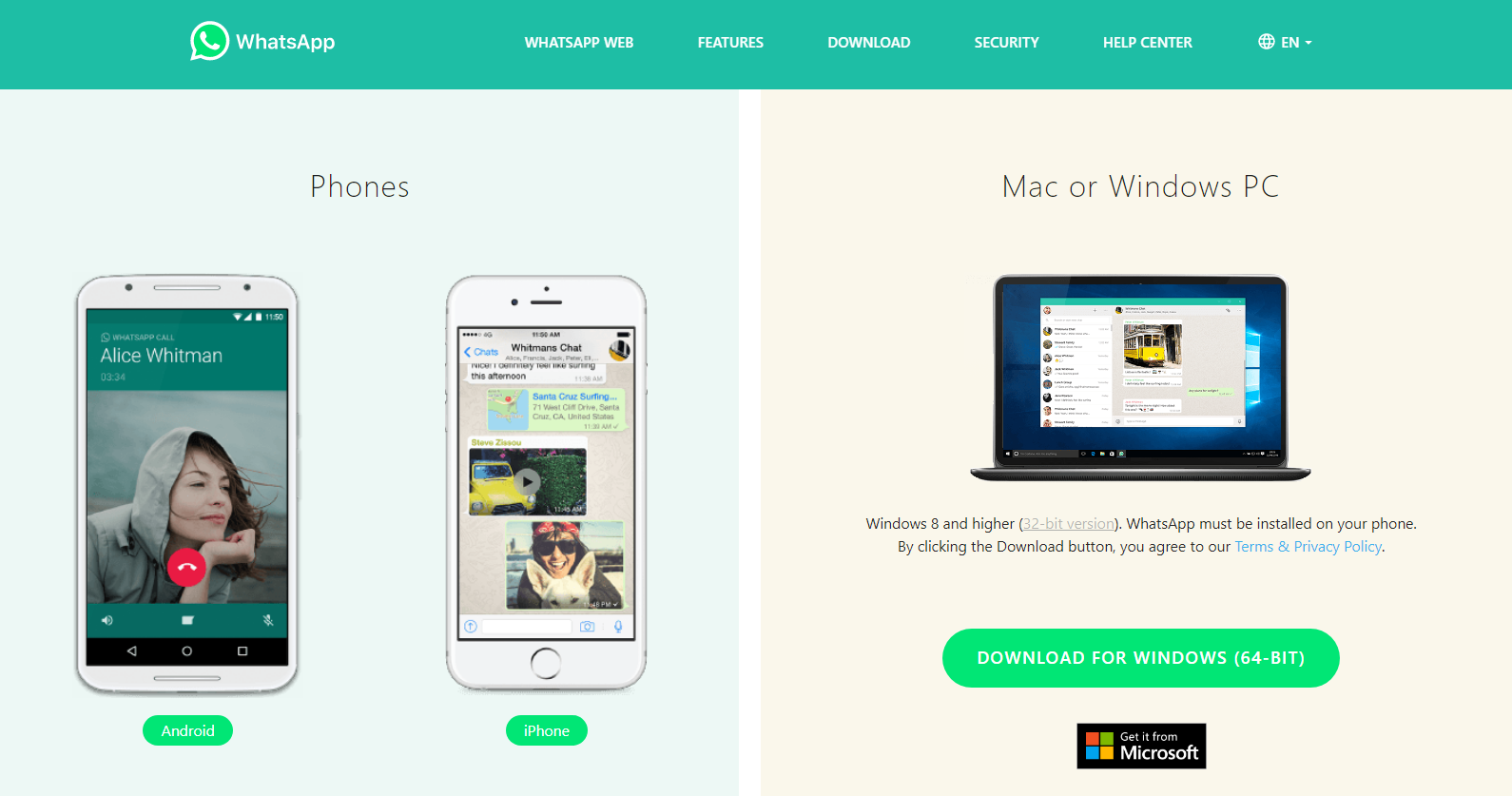
Before you can enjoy WhatsApp video calls, you need the app on a compatible device. The process is straightforward: download WhatsApp from the App Store or Google Play, verify your phone number, and grant the necessary permissions for camera and microphone. Skipping the permission step will block video functionality, so double‑check that everything is allowed in your phone’s settings.
Once the app is active, your contact list automatically syncs with anyone who also uses WhatsApp. If you see a contact without a profile picture, it probably means they haven’t installed the app yet. Sending them a quick text invite can save you a few taps later.
How to Make a Video Call
Starting a video call is as simple as tapping the video‑camera icon on an existing chat. The icon appears at the top of the conversation screen, next to the voice‑call button. When you tap it, WhatsApp asks for confirmation before dialing, giving you a chance to switch to the front‑facing camera or mute your audio.
During the call, you can toggle between the front and rear cameras, add a caption, or share a location without ending the conversation. To end the call, just press the red phone button; the chat window will show the call duration and a small thumbnail of the video.
Features and Tips for a Smooth Experience
WhatsApp video calls support up to eight participants in a single group, though the quality can dip if several people have weak connections. If you notice lag, try switching to a lower‑resolution mode in your phone’s camera settings or ask participants to turn off their video temporarily.
Another handy feature is the ability to blur your background. This isn’t a native option yet, but many phones now include a system‑wide blur that works within WhatsApp. Activate it in your camera settings before joining the call.
Remember to keep the app updated. New releases often bring performance tweaks, bug fixes, and occasionally, new call features like screen sharing (currently in beta for select Android devices).
Managing Calls and Privacy Settings
Privacy on WhatsApp revolves around the “Last Seen,” “Profile Photo,” and “About” fields, but video calls add a few more considerations. Under Settings → Account → Privacy, you can control who can call you directly. Selecting “My Contacts” limits calls to people saved in your address book, which helps avoid spam.
If you receive a call from an unknown number, you can decline it without sending a notification. The caller will see a single “Missed Call” entry, preserving your privacy while still letting you decide later whether to respond.
Troubleshooting Common Issues
When video calls freeze or drop, the first step is to check your internet connection. Switching from cellular data to a stable Wi‑Fi network often resolves the problem. If the issue persists, try restarting the app or clearing its cache (Android) / reinstalling it (iOS).
Audio problems can stem from muted microphones or blocked permissions. Open your device’s settings, locate the WhatsApp permissions page, and ensure the microphone is toggled on. Occasionally, a headset or Bluetooth device can interfere; disconnecting it and using the phone’s built‑in mic may help.
Lastly, if you see a “Call Failed” message, it could be a temporary server issue. Wait a few minutes and try again, or check WhatsApp’s status page for any reported outages.
FAQ
Can I record a WhatsApp video call?
WhatsApp does not include a built‑in recorder, and the app blocks native screen‑recording on most platforms to protect privacy. Some third‑party apps claim to capture calls, but using them may violate local laws and WhatsApp’s terms of service.
Is there a limit to how long a WhatsApp video call can last?
There’s no explicit time cap, but extremely long calls can drain battery quickly and may be interrupted if your network drops. If you plan a marathon chat, keep your device plugged in and consider a stable Wi‑Fi connection.
Do WhatsApp video calls use a lot of data?
Video calls consume roughly 3–5 MB per minute on a typical 720p stream. Lowering the video quality or using Wi‑Fi instead of cellular data can significantly reduce the consumption, especially if you’re on a limited plan.