The Best Video Editing Apps for iPad Pro (2024 Guide)
If you’ve upgraded to an iPad Pro and want to treat it like a portable post‑production studio, you’re not alone. The combination of a powerful M‑series chip, a stunning Liquid Retina display, and Apple Pencil support makes the tablet a surprisingly capable editing platform. Below we’ll walk through the top video editing apps that truly shine on the iPad Pro, and help you decide which one fits your style.
Why the iPad Pro Handles Video Editing So Well
The latest iPad Pro models pack the same Apple Silicon found in many MacBooks, delivering smooth playback of 4K footage and real‑time effects rendering. The ProMotion display, with up to 120 Hz refresh, lets you scrub through timelines with buttery precision, while the generous storage options keep large media libraries handy. Add the Magic Keyboard and Apple Pencil, and you’ve got a workflow that rivals a laptop‑only setup—especially for creators on the move.
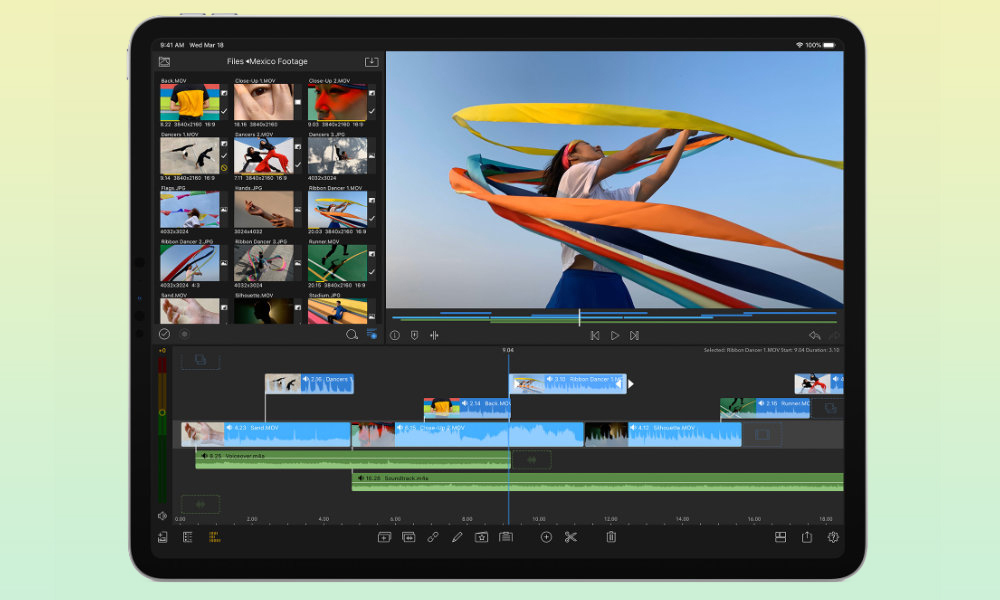
LumaFusion: The Industry Standard on iPad
LumaFusion has earned a reputation as the go‑to professional‑grade editor for iPad. Its multi‑track timeline (up to six video + six audio tracks) handles complex projects without a hitch.
- Pros: Robust color‑grading tools, built‑in effects library, and seamless import from external drives.
- Cons: Steeper learning curve for beginners; no native multi‑camera editing.
Because it’s a one‑time purchase rather than a subscription, many freelancers appreciate the predictable cost.
iMovie: Simple, Free, and Surprisingly Powerful
For those just dipping their toes into editing, iMovie offers a clean interface and tight integration with the Photos app.
- Pros: Free with iPadOS, easy theme‑based projects, and direct export to YouTube or Instagram.
- Cons: Limited track count and fewer advanced effects compared to LumaFusion.
It’s an excellent starter tool, especially if your videos are short and social‑media focused.
Adobe Premiere Rush: Cross‑Platform Consistency
Premiere Rush brings the familiarity of Adobe’s ecosystem to the iPad, syncing projects across desktop, mobile, and web.
- Pros: Cloud‑based project storage, automatic audio ducking, and a growing suite of motion graphics templates.
- Cons: Requires an Adobe subscription; performance can lag on very high‑resolution clips.
If you already use Photoshop or After Effects, Rush offers a smooth transition to mobile editing.
DaVinci Resolve (Beta on iPad): Color Grading Powerhouse
Blackmagic Design recently released a beta version of DaVinci Resolve for iPad, targeting colorists who need precise control on the go.
- Pros: Industry‑leading color wheels, node‑based grading, and support for RAW footage.
- Cons: Still in beta, so some features are limited; the UI feels desktop‑centric.
While not a full replacement for the desktop version yet, it shows promise for future iPad‑centric workflows.
Clips: Quick Edits for Social Media
Apple’s Clips app is designed for rapid, eye‑catching content—think TikTok or Instagram Reels.
- Pros: Real‑time subtitles, AR effects, and one‑tap sharing to social platforms.
- Cons: Very limited editing depth; no multi‑track timeline.
Use Clips when you need to capture and publish a moment within minutes.
Choosing the Right App for Your Workflow
Start by asking yourself three questions: How complex are your projects? Do you need cross‑device syncing? And what’s your budget?
If you regularly edit multi‑camera interviews, LumaFusion or DaVinci Resolve (once fully released) will save you time. For vloggers who publish daily, iMovie or Premiere Rush offers speed without sacrificing polish. Creators focused on short‑form content might find Clips sufficient, especially when paired with the iPad’s built‑in camera.
Remember that most of these apps provide free trials or demo versions—spend a weekend testing each before committing.
Tips to Maximize Editing on iPad Pro
- Use an external SSD via the USB‑C port to keep large video libraries off the tablet’s internal storage.
- Activate ProMotion’s high refresh rate in Settings → Display & Brightness for smoother timeline scrubbing.
- Pair the Apple Pencil with LumaFusion’s precision trimming tools for frame‑accurate cuts.
- Export in the “Optimized for Web” preset when uploading to platforms that favor smaller file sizes.
Frequently Asked Questions
What video editing app works best on iPad Pro for beginners?
iMovie is often recommended because it’s free, intuitive, and integrates tightly with iPadOS, making the learning curve gentle.
Can I edit 4K footage smoothly on an iPad Pro?
Yes—both LumaFusion and the upcoming DaVinci Resolve beta handle 4K timelines without dropped frames, provided you have enough RAM (8 GB or more) and use a fast external drive for media.
Is a subscription required for professional‑grade editing?
Not necessarily. LumaFusion is a one‑time purchase, while Adobe Premiere Rush and DaVinci Resolve rely on subscription or beta models. Choose based on whether you value ongoing updates and cloud sync.