Track Your UPS Package in Minutes: A Simple Step‑by‑Step Guide
When a delivery estimate shows up on your phone, the next instinct is to see exactly where the box is right now. Tracking a UPS package is straightforward once you know where to look and what numbers to use. In the next few minutes you’ll learn the quickest ways to pull up real‑time status, understand the codes that appear, and handle the odd hiccup that sometimes shows up on the route.
How to Track a UPS Package
UPS offers three main portals for checking a shipment: the UPS.com tracking page, the UPS mobile app, and the UPS My Choice dashboard. Choose the one that fits your routine and follow these steps.
- Locate the tracking number. It’s a 18‑character string that typically starts with “1Z”. You’ll find it in the shipping confirmation email, on the receipt, or in the seller’s order details.
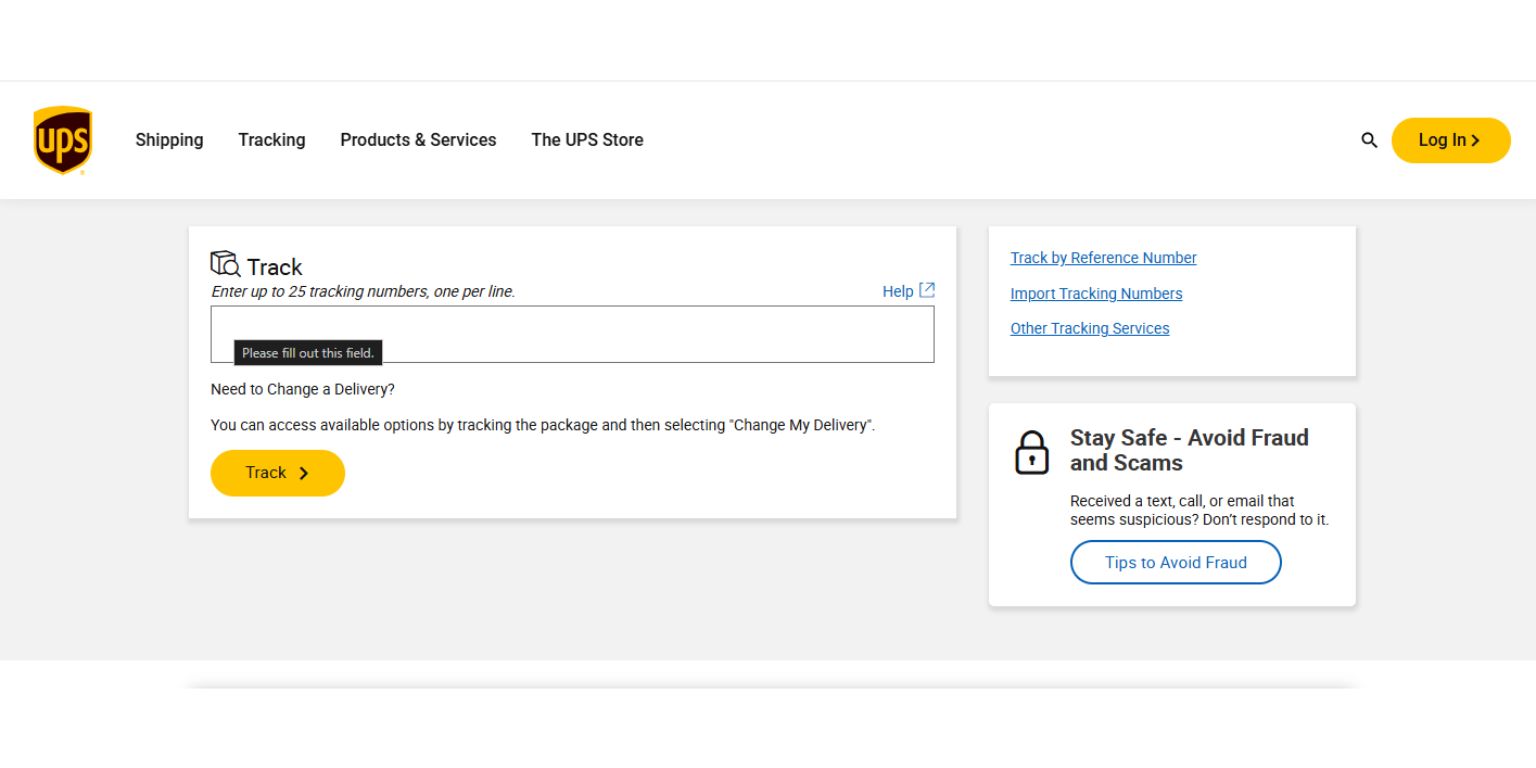
- Visit the official tracking page. Go to ups.com/track and enter the number in the field provided. Press “Track”.
- Read the status feed. UPS displays a timeline: pickup, departure from origin facility, customs (if applicable), arrival at destination hub, out‑for‑delivery, and delivered. Hover over each event for a timestamp and location.
- Enable notifications. If you sign up for UPS My Choice, you can receive email or SMS alerts for every status change, including delivery attempts.
- Use the mobile app. The app mirrors the website but adds a map view and a “Package Details” screen where you can request a delivery change, such as holding the package at a UPS Access Point.
Understanding UPS Tracking Numbers
A typical UPS tracking number looks like 1Z9999W9999999999. The first two characters (“1Z”) identify the carrier, the next six are the shipper’s account number, the following two indicate the service type, and the final eight are the package’s serial identifier. Knowing this format helps you spot typos—if a digit is missing or the “1Z” is absent, the system won’t recognize the entry.
Tips for Faster Updates
UPS updates its system at key milestones, but a brief lag can occur when a package is in transit between facilities. Here are a few ways to keep the info as current as possible:
- Check the tracking page after the estimated event time, not a few minutes before. A status change usually appears within 15‑30 minutes of the actual movement.
- Refresh the page or pull‑to‑refresh in the app rather than opening a new tab; the cached data sometimes shows an older snapshot.
- If you’re tracking an international shipment, be aware that customs clearance can pause updates for several hours while paperwork is processed.
- Enable “Delivery Instructions” in UPS My Choice. Adding a note like “Leave at back porch” can reduce the chance of a missed delivery and the resulting “Delivery attempt” status.
What to Do If Your Package Gets Stuck
Occasionally a package will linger at a hub or show a “Exception” status. First, verify the tracking number again—typos happen more often than you think. If the number is correct, try these steps:
- Contact UPS Customer Service and provide the tracking number. They can access internal logs and tell you whether the package is awaiting a carrier‑handed‑off or stuck due to an address issue.
- Check the “Proof of Delivery” link once the status changes to “Delivered”. It shows the recipient’s signature and exact drop‑off location.
- For high‑value items, consider filing a claim through the UPS website if the package is declared lost after 30 days of no movement.
Using Third‑Party Trackers Wisely
Many e‑commerce platforms embed a simplified tracker on their order pages. While convenient, those widgets often pull data from UPS only after a delay. If you need the most accurate, real‑time info, always fall back to the official UPS portal or app. Third‑party services can be handy for comparing multiple carriers at once, but they should not replace the primary source for critical shipments.
FAQs
Can I track a UPS package without a tracking number?
Generally no. The tracking number is the unique identifier UPS uses to log each event. However, if you placed the order through a retailer, you can sometimes retrieve the number from your account order history.
Does UPS deliver on weekends?
Yes, UPS offers Saturday delivery for most residential shipments, and in some metro areas Sunday delivery is available through UPS Access Point locations. Weekend deliveries will still appear in the tracking timeline.
What does “Exception” mean in UPS tracking?
An “Exception” indicates a delay or issue—perhaps a customs hold, an incorrect address, or a weather‑related disruption. The details section usually explains the cause and next steps.
How can I change the delivery address after the package has shipped?
If the shipment is still in transit, you can log into UPS My Choice and request a reroute to a different address or to a nearby UPS Access Point. Some changes may incur a fee, and they’re not possible once the package is out for delivery.