What Is a Chrome User Agent and How to Change It
When you browse the web with Chrome, the browser sends a tiny string of text called a user agent. That string tells the website which browser you’re using, what operating system you run, and sometimes even your device model. Most of the time this happens behind the scenes, but understanding it can demystify why sites look different on various devices.
Understanding the Chrome User Agent
A Chrome user agent looks something like this: Mozilla/5.0 (Windows NT 10.0; Win64; x64) AppleWebKit/537.36 (KHTML, like Gecko) Chrome/124.0.0.0 Safari/537.36. The first part, “Mozilla/5.0,” is a historic relic—originally all browsers pretended to be Mozilla for compatibility. The next chunk identifies the operating system, then the rendering engine (AppleWebKit), and finally the exact Chrome version.
Websites read this string to decide which CSS rules to apply, whether to serve a mobile‑optimized layout, or which JavaScript features to enable. If the user agent claims to be an older browser, the site might fall back to simpler code, which can affect performance or visual fidelity.
Why Change Your User Agent?
There are several legitimate reasons to tweak the Chrome user agent. Developers often need to test how a site behaves on older browsers without installing them. Marketers might want to see the mobile version of a site while sitting at a desk. And everyday users sometimes use a spoofed user agent to bypass site restrictions that block certain browsers or devices.
Another common use case is accessing content that’s region‑locked based on device type. Some streaming services, for example, only allow playback on “mobile” user agents, so switching can unlock those streams on a desktop. While this isn’t a substitute for proper VPNs or legal access, it illustrates how flexible the user agent can be.
How to Change the Chrome User Agent on Desktop
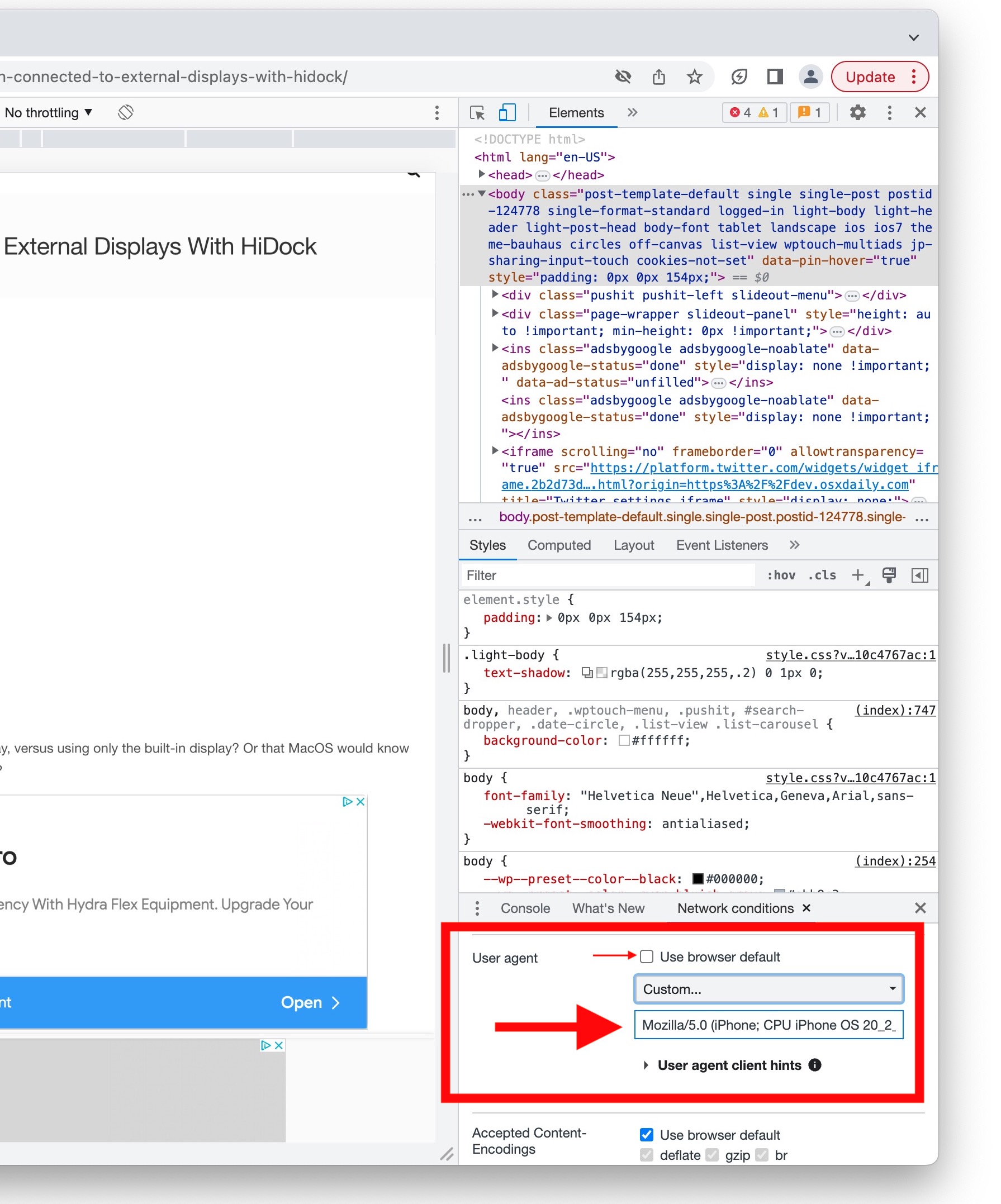
- Using Chrome’s Developer Tools (temporary): Open any page, press Ctrl+Shift+I (or Cmd+Option+I on macOS) to launch DevTools. Click the three‑dot menu → More tools → Network conditions. Uncheck “Select automatically” and pick a preset or enter a custom string. The change lasts until you close the tab.
- Via Command‑Line Flags (more permanent): Close Chrome completely. Launch it with the
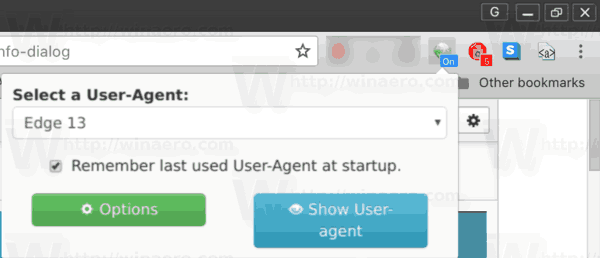
--user-agent="YourCustomString"flag. On Windows, you can modify a shortcut’s target; on macOS, use Terminal:open -a "Google Chrome" --args --user-agent="YourCustomString". This method applies to every new window you open. - Using Extensions (convenient): Search the Chrome Web Store for “User Agent Switcher.” Popular options like “User-Agent Switcher for Chrome” let you toggle between profiles with a single click. Extensions typically store your choices, so the spoof persists across sessions unless you disable the add‑on.
Changing the User Agent on Mobile Chrome
Mobile Chrome doesn’t expose a built‑in user‑agent switcher, but you have a few work‑arounds. The simplest is to use a third‑party browser that offers a user‑agent setting, such as Firefox for Android or Kiwi Browser, which is based on Chromium and supports extensions.
If you prefer to stay within Chrome, you can enable “Desktop site” from the overflow menu. This tells the site to serve desktop content, but it doesn’t truly change the underlying user‑agent string. For a genuine change, you’ll need to install a user‑agent‑switching app from the Play Store (e.g., “User Agent Switcher”) that works system‑wide, though root access may be required for full control.
Best Practices and Pitfalls
Switching user agents can be a powerful debugging tool, but it’s worth remembering a few cautions. First, some sites detect mismatched fingerprints—if your IP address, screen size, and user agent don’t line up, they might block you or serve a warning page. Second, overusing extensions can slow down Chrome, especially if they inject scripts on every request.
When testing, keep a record of the exact user‑agent strings you use. Many online databases, like WhatIsMyBrowser.com, let you verify the string that Chrome is sending after you make a change. That way you can be sure the site is receiving the intended identifier.
Real‑World Scenarios Where a Spoof Helps
- Testing responsive design: Quickly flip between a mobile and desktop user agent to see how CSS media queries react.
- Accessing legacy web apps: Some internal tools still require older browsers; a spoof can trick the app into thinking you’re using IE 11, avoiding costly installations.
- Bypassing paywalls: Certain news sites limit free articles based on mobile browsers. Switching to a desktop user agent may grant you additional reads, though it’s essential to respect the publisher’s terms.
- Debugging server‑side logic: Backend frameworks sometimes serve different API responses based on the user agent. A spoof helps verify that logic without altering server code.
FAQ
What does a Chrome user agent string contain?
It includes the browser name and version, the operating system, the rendering engine (WebKit), and sometimes device details. The format follows a long‑standing convention that dates back to the early days of Netscape.
Can I change the Chrome user agent permanently without extensions?
Yes, by launching Chrome with the --user-agent command‑line flag. This method applies the custom string to every new window, but you’ll need to adjust the shortcut or script each time you start the browser.
Is spoofing my user agent illegal?
Generally, changing a user agent is legal; it’s simply a header you control. However, using it to violate a site’s terms of service—such as bypassing paywalls or geo‑restrictions—could lead to account suspension or other consequences.
Do all websites respect a changed user agent?
Most modern sites read the header and adapt accordingly, but a savvy site may employ additional checks (like JavaScript feature detection) that override the user‑agent hint. In those cases, a spoof might not produce the desired effect.