Why 7‑Zip Portable Is the Ideal On‑The‑Go Compression Tool
When you need to zip, unzip, or encrypt files while hopping between laptops or working from a coffee shop, a lightweight, self‑contained program can make the difference. 7Zip Portable delivers the full power of the popular 7‑Zip suite without the hassle of an installation, letting you keep your favorite compressor in a pocket‑sized drive.
What Sets 7‑Zip Portable Apart from the Regular Version
The standard 7‑Zip installer writes registry keys and creates start‑menu shortcuts. The portable edition skips all of that, launching directly from the folder you unpack it into. Because it doesn’t touch the host system, you can run it on computers where you lack admin rights, on public terminals, or on any machine that blocks software installations.
Functionally, the portable build retains the same compression algorithms—LZMA, LZMA2, PPMd, and BZip2—so you don’t sacrifice speed or archive size. The biggest trade‑off is the absence of automatic updates; you’ll need to replace the folder manually when a newer release appears.
How to Run 7‑Zip Portable from a USB Stick
Getting started is almost as simple as copying a file:
- Download the latest 7‑Zip Portable zip archive from a reputable source such as PortableApps.com.
- Extract the contents onto your USB flash drive or external SSD.
- Navigate to the folder and double‑click
7zFM.exe(the file manager) or7z.exefor command‑line use.
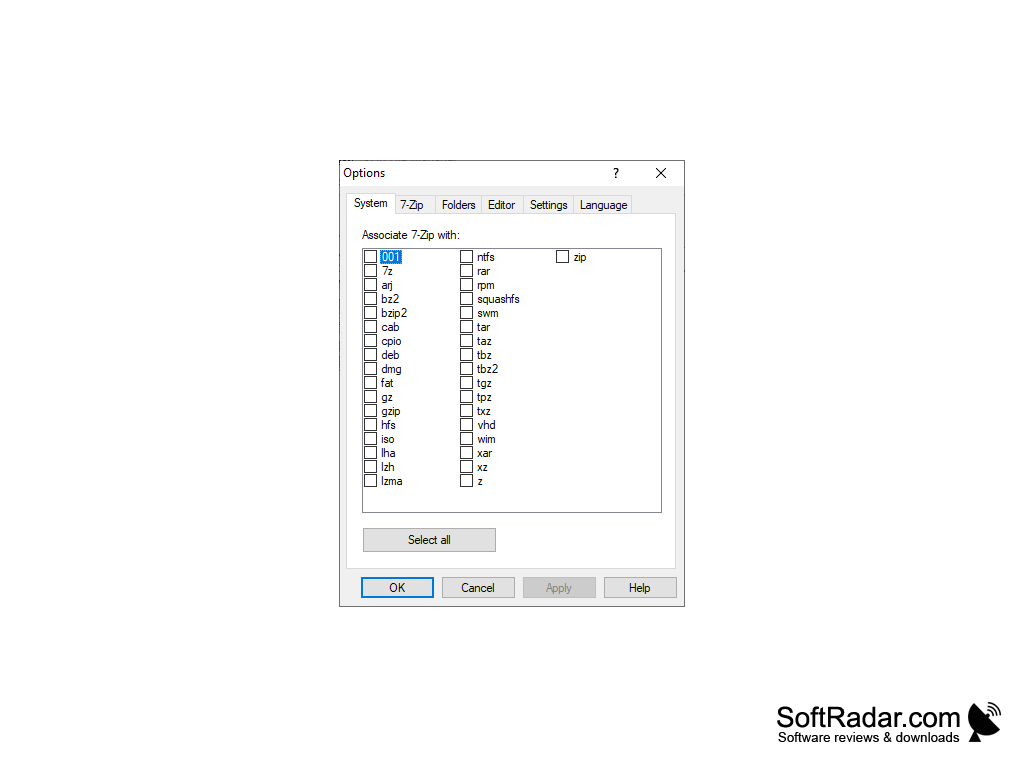
Because the program stores its settings in a plain 7z.ini file inside the same directory, your preferences travel with the drive. Open the app on any Windows PC, and you’ll see your custom file associations, language choice, and recent‑file list exactly where you left them.
Key Features Worth Noticing
High‑ratio compression: 7‑Zip’s LZMA2 algorithm consistently outperforms ZIP and RAR in benchmarks, especially for large text or source‑code archives.
Strong encryption: You can protect archives with AES‑256 encryption, a level of security that rivals dedicated encryption tools.
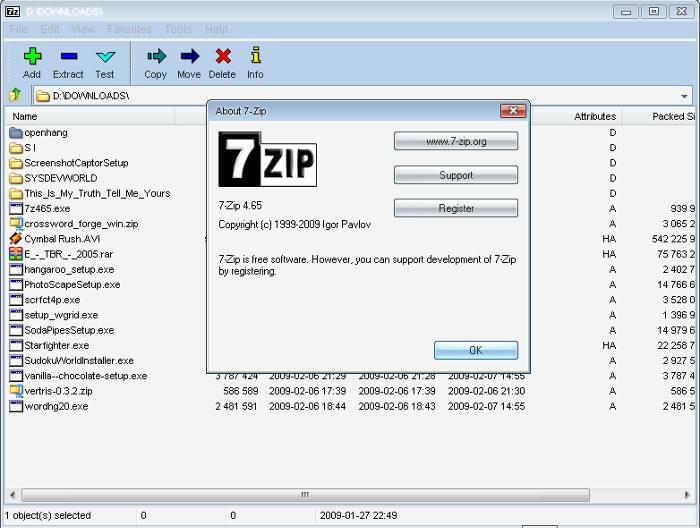
Broad format support: In addition to its native 7z format, the portable version can unpack ZIP, GZIP, TAR, ISO, and even older formats like CAB.
Command‑line integration: For power users, the 7z.exe binary accepts a full suite of switches, making it easy to script batch compressions or integrate into build pipelines.
When Portable Might Not Be the Best Choice
If you work in a tightly controlled corporate environment, some IT policies block executable files run from external media. In such cases, the portable version could be flagged as a security risk, whereas a centrally managed, signed installer might be pre‑approved.
Another limitation is the lack of automatic update notifications. You’ll need to check the project’s website periodically and replace the folder manually, which can be inconvenient if you rely on the latest bug fixes.
Tips for Staying Secure While Using Portable Compression
Because the app runs without installation, it inherits the security posture of the host computer. Keep these practices in mind:
- Scan the portable folder with the host’s antivirus before launching, especially on public machines.
- Encrypt sensitive archives with a strong, unique password; avoid reusing passwords you’ve used elsewhere.
- Keep a backup copy of your portable folder on a separate drive in case the USB stick gets lost or corrupted.
- Disable “remember passwords” in the settings if you plan to use the tool on shared computers.
Real‑World Scenarios Where 7‑Zip Portable Shines
Imagine you’re a freelance photographer traveling between client sites. You can compress a batch of RAW files on a hotel laptop, encrypt the archive, and hand it over to a client via a secure file‑transfer service—all without leaving any trace on the borrowed computer.
Or consider a developer who needs to package logs for a support ticket while using a coworker’s workstation. A quick right‑click in the 7‑Zip file manager creates a zip archive that can be attached to an email, and the entire process leaves no residual files behind.
Getting the Most Out of the Portable Experience
Take advantage of the built‑in file manager’s “Favorites” pane to pin frequently used folders, reducing navigation clicks on machines with slow storage. You can also create custom context‑menu entries via the portable version’s settings, giving you “Add to 7‑Zip archive” right‑click options even on systems where the default file explorer doesn’t show them.
For those comfortable with the command line, a tiny batch file stored on the same USB drive can automate repetitive tasks. A sample script might look like:
@echo off7z.exe a -t7z -m0=lzma2 -mx=9 -mhe=on "%~1.7z" "%~1"
Running this script with a folder path creates a maximum‑compression, encrypted 7z archive in seconds.
FAQ
Is 7‑Zip Portable safe to use on public computers?
Generally yes, as long as you scan the executable with the host’s antivirus and avoid saving passwords on the machine. The portable version doesn’t write to the registry, which limits its footprint.
Can I update 7‑Zip Portable without reinstalling?
Updates require you to download the new portable package and replace the old folder. Because all settings are stored in the same directory, the transition is seamless.
Does the portable version support multi‑core compression?
Absolutely. The LZMA2 engine automatically utilizes available CPU cores, just like the installed version.
Will my encrypted archives work on computers that only have the standard 7‑Zip installed?
Yes. Archives created with 7‑Zip Portable adhere to the same 7z format specifications, so any up‑to‑date 7‑Zip installation can open them, provided you supply the correct password.